Find any file on any of your machines, as fast as you can type.
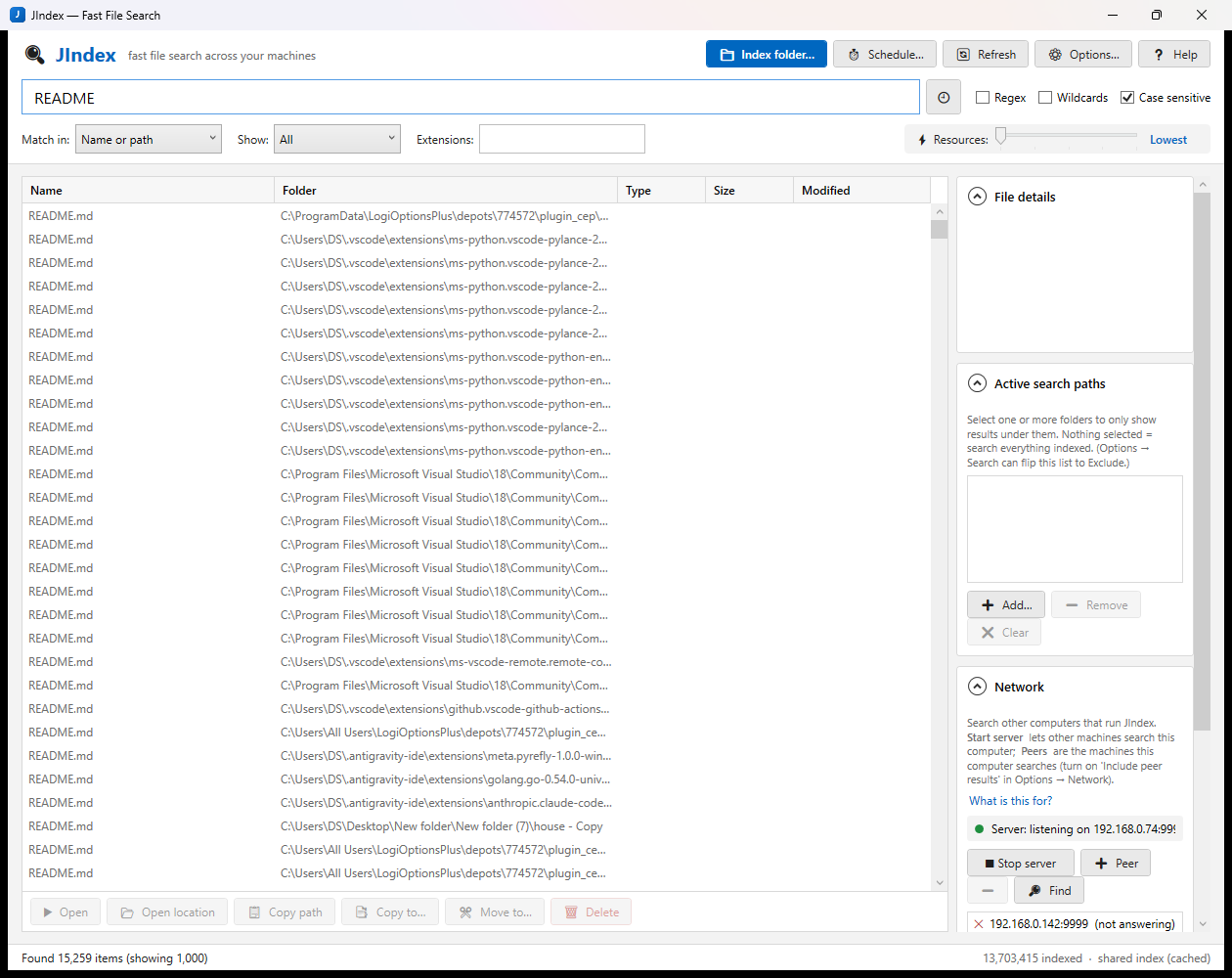
JIndex walks the folders you tell it about once, writes every file and folder path into an index, and from then on finds things instantly while you type — across local drives, the NAS and, optionally, other PCs running JIndex. Several words narrow the search; double-click a result to open it.
JIndex-win64.zip · Windows · free · no account, no cloud.
Downloads are paused right now — check back soon.
features
idxIndex once, search instantly
An index is a plain text file, one path per line. Searching scans that list in memory, so results appear while you type even with millions of entries. Words match in the name or the full path, in any order.
nasNAS-aware, multi-machine
Each PC writes index_<COMPUTER>.txt to a shared folder; JIndex loads every index file it finds there. You see files on other computers with no network setup at all — just point everyone at the same share.
lanLive peer search
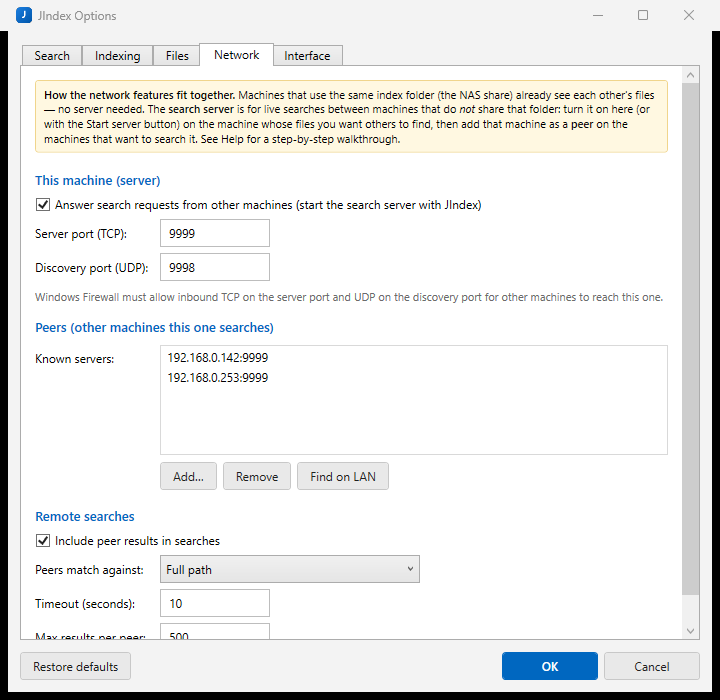
For machines that can't reach the share: start the search server (TCP 9999), let Find discover it on the LAN (UDP 9998), and every search also queries peers in parallel. Their hits appear in blue, tagged [MACHINENAME].
rxRegex & wildcards
Plain word search by default; flip to a .NET regular expression (^report_\d{4}\.pdf$) or a whole-name wildcard pattern (*2024*report*). Case-sensitive on request.
fltFilters that stick
Match in name / path / either, files or folders only, extension list (pdf;docx;xlsx), size and date ranges, and an include-or-exclude list of active search paths. Everything is saved a second after you change it.
actAct on results
Open, open location, copy path or name, copy to…, move to…, delete (permanently or to the Recycle Bin), properties, exclude this folder. Bulk copies run on several worker threads.
schStays fresh by itself
Schedule… creates the JIndex_AutoScan Task Scheduler task that runs JIndex.exe /scan daily, hourly, at logon or when idle. An optional Windows service re-indexes local drives every 24 h even when nobody is logged on.
ramResources slider
One ⚡ Resources slider from Lowest to Max sets priority, cores per search, typing delay and indexing throttle — and on the low settings releases the whole index while JIndex idles in the tray, reloading it in seconds when you come back.
cacheFast start-up
After each load from the share JIndex writes a local merged cache (%LOCALAPPDATA%\JIndex\cache). Next start loads in seconds, runs your last search, then re-reads the share in the background only if something changed.
in action
quick start
- Index something. Click 📁 Index folder… (Ctrl+I), pick a drive, browse to a folder, type a network path such as
\\NAS\ALL Files, or press This PC for every local drive. Indexing runs in the background; you can keep searching. The folder is added to your auto-scan list automatically. - Search. Just type.
invoice 2024 pdffinds entries whose name or path contains all three words. Enter runs it now and remembers it in the 🕘 history; Esc clears. Double-click a result to open it, right-click for more. - Keep it fresh. Click ⏱ Schedule…, pick Every day at 02:00 (or whatever suits), save. JIndex notices when a scan has rewritten the index (checked every 5 minutes) and reloads it; 🔄 Refresh (F5) does it immediately.
- There is no step 4. Search text, toggles, filters, selected paths, sort column, window size and position and side-panel layout all come back exactly as you left them. Closing the window keeps JIndex in the tray; launching it again just brings the window forward — it never starts a second copy.
Replace or add? By default each indexing run replaces this machine's index. To build it up folder by folder, turn on Options → Indexing → "Add to the existing index instead of replacing it" first — or index a drive root / "This PC" in one go.
keyboard shortcuts
| Keys | Where | Action |
|---|---|---|
| Ctrl+F | anywhere | Jump to the search box |
| Enter | search box | Search now and remember the query |
| Esc | search box | Clear the search |
| ↓ | search box | Move into the results |
| Enter | results | Open |
| Del | results | Delete |
| Ctrl+C / Ctrl+Shift+C | results | Copy full path(s) / name(s) |
| Esc | results | Back to the search box |
| F5 | anywhere | Refresh (reload index) |
| Ctrl+I | anywhere | Index folder… |
| Ctrl+O | anywhere | Options |
| F1 | anywhere | Help (the built-in manual) |
command line
| Command | Purpose |
|---|---|
JIndex.exe | The search window |
JIndex.exe /scan | Headless re-index of the auto-scan list at idle priority, then exit (what the scheduled task runs) |
JIndex.exe /service | Run as the JIndexService Windows service (re-indexes every 24 h) |
JIndex.exe /install · /uninstall | Register / remove that service (asks for Administrator) |
privacy & security
0No cloud, no account
Nothing leaves your network. The index lives in a folder you choose (the NAS share by default, %APPDATA%\JIndex as fallback); settings are a plain options.ini.
txtReadable index files
An index is one path per line in a text file you can open, inspect or delete. Clear this machine's index removes just this computer's file; your actual files are never touched.
9999Peer search shares paths only
The search server answers with search results (paths), nothing else, capped per peer. It is off by default; enable it per machine, and open TCP 9999 / UDP 9998 in the firewall only where you want it.
svcService runs as LocalSystem
The optional service can't open network shares, so it only indexes local drives. For NAS paths use the scheduled task, which runs as you — nothing is ever run with more rights than you have.
faq
The search finds nothing.
report only matches an item named exactly report — untick it or type *report*. Check the status bar's index count ("0 indexed" means nothing indexed yet or still loading), whether a path is selected in Active search paths, and the Show / Extensions / size / date filters.Start-up shows "Loading index…" for a long time, or JIndex uses many GB of memory.
$Recycle.Bin, node_modules, .git, WinSxS…), and drag the ⚡ Resources slider left if the PC feels sluggish.I indexed a second folder and the first one disappeared.
The status bar says "local index".
"Find" does not find the other computer.
Peer results appear but I cannot open them.
\\OFFICE-PC\c$\… if you have rights) or on that machine. Copy / Move / Delete are disabled for peer results.The scheduled task runs but nothing changes.
settings.txt in the index folder) is probably empty. Open Options → Indexing → Paths to auto-scan, add folders or drives, press OK. Use Scan now to test, then Refresh.Results include files that no longer exist (grey rows).
Where are my settings?
%APPDATA%\JIndex\options.ini — saved about a second after every change, not only at exit, so a crash or shutdown loses nothing. The full manual is one F1 away inside the app.