Windows Desktop Productivity

The command center for your Windows desktop.

FloDee is a floating control hub that puts your applications, files, notes, and window management one click away — engineered to stay out of your way until you need it.

Free, forever. No account, no credit card, no expiry date — the floating task switcher, your shortcut panels and the whole capture toolkit are yours to keep. Every new install also runs the entire program unlocked for 1440 hours (60 days) of actual use, so you can try all of it. When those hours are up FloDee doesn't expire or shut down — it simply carries on as the free version, and nothing you've set up is ever deleted.

🛡️ AI Models Used for Safety & Quality Control (development-time code review): FloDee’s code is regularly security-reviewed by AI models — Claude Fable 5 and Claude Opus 5 — for code integrity, safety, and vulnerabilities to hacking. No malware or unsafe behavior found. Details · test builds

Signed & verified: every FloDee installer is digitally code-signed through Microsoft’s Azure Trusted Signing after publisher identity verification — Windows shows a named, verified publisher, never “Unknown Publisher”.

🗓️ Weekly Quality Stamp: the FloDee builds, code health, and live services are automatically re-checked and stamped every Tuesday.

FloDee is AI-free — no AI models or functions built in or attached, and it never contacts an AI service. More
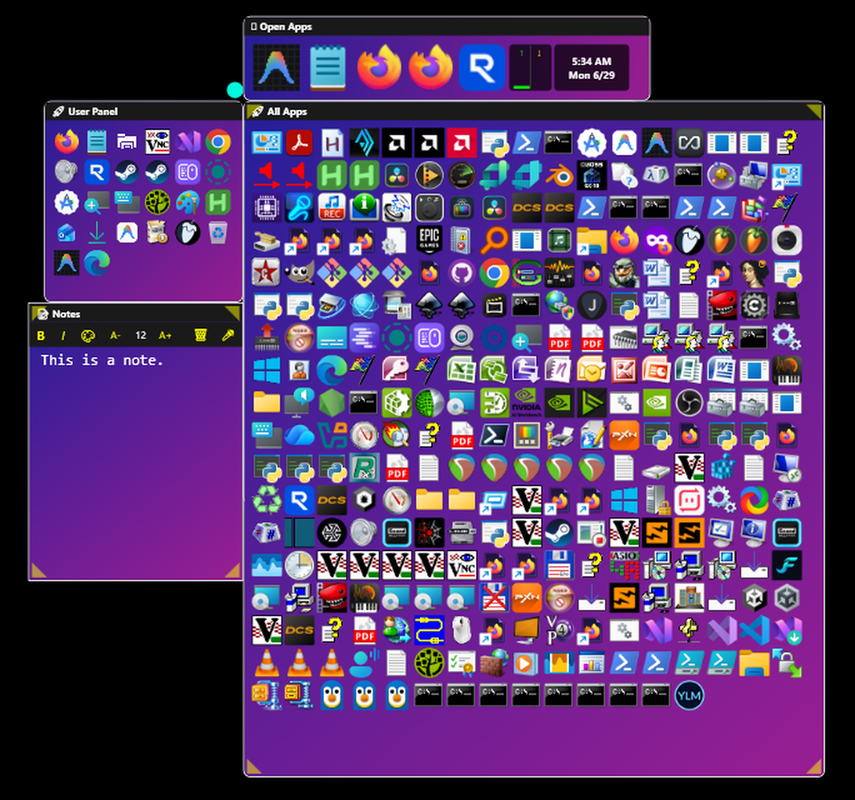
FloDee floating desktop hub running on Windows
from $25
One-time license — no subscription
1440 hrs
Everything unlocked (60 days of use) — then free forever
3 years
Free updates & support per version
Zero
Usage tracking or data collection

Everything at your fingertips

One small dot on your screen. Hover over it and your entire workflow opens up.

Floater Dot

The central hub of FloDee. Drag it anywhere on screen and all your panels follow. Hover to open your panels, quick-click to show the desktop. Double-tap Ctrl to open FloDee without touching the mouse.

Open Apps Panel

See all your running apps at a glance. Left-click to bring any window to front. Middle-click to close it gently — or double-click your middle mouse button to force-kill a frozen app.

Files Panel

Instant access to your most-used folder. Left-click to open files, middle-click to reveal them in Explorer, right-click for the full Windows shell menu. Ctrl+Scroll to cycle view modes.

User Apps

Your personal quick-launch bar. Drag and drop any file, folder, or executable to add it. Hold Ctrl and drag to rearrange. Click a folder to open it in Explorer, double-click to anchor it to FloDee, right-click any icon for its menu.

Notepad Panel

Persistent notes that save automatically as you type — no Ctrl+S needed. Includes inline search, rich formatting, voice dictation, and a quick-access clipboard history.

Live Preview Panel

Hover any running app in Open Apps to see a live thumbnail. Scroll to zoom, drag to pan, middle-click to dismiss it until next hover.

Your first ten minutes

Opening FloDee is the easy part — here's what actually using it feels like. Try some of FloDee's outstanding features — grab the free demo and follow along.

1

Pick how it opens. The first run asks for your summon gesture — tilt the mouse wheel right, double-tap Ctrl, a side button, whatever feels natural. Summon it anywhere and the Open Apps panel has already found every window you're running. Zero setup.

2

Peek without switching. Hover any running app for a live thumbnail of its window — scroll to zoom in, drag to pan, and “Pin in Place” keeps a video or a log watchable on top while you work in something else.

3

Throw windows around. Hold Left and click Right on an app's icon: its window flies to your cursor. Do it again — it flies right back where it was. Right-click maximizes; hold Right and click Left minimizes.

4

Build your launcher without building anything. Open a new app and FloDee offers to pin it to your User Apps panel with one click — or drag any file, folder, or program straight onto the panel. Ctrl+scroll resizes every icon at once.

5

Add panels for how you work. Notepad, Files, Clipboard History, Volume Mixer… and the Panel Loader can scan for every installed app — or every image, video, or document in a folder — and build a panel out of whatever it finds.

6

Arrange it your way. Drag panels by their title bars, resize from any edge or corner, or detach one into a free-standing window that snaps to screen edges and to other panels.

7

Save whole setups. Workspaces bundle a panel layout with the apps you use. Snapshots put every open window back in its exact spot. Deskspaces swap entire desktops' worth of icons and wallpaper — a Work desktop, a Gaming one — in seconds, with files moved, never deleted. Per-monitor mode puts a different deskspace on each monitor at once (any number of monitors) and rotates them with one key.

8

Capture anything. Region screenshots, GIFs, MP4 recording with audio and a live drawing pen, OCR that copies the text out of any dialog or image, and voice-to-text straight to your clipboard.

9

Run your stream. The OBS panel remote-controls OBS Studio: live preview, scene switching with thumbnails, a real audio mixer with peak meters, one-click record or stream.

10

Open the toolbox. Command Palette (find anything — it's also a calculator and unit converter), MixSaviour audio profiles, a Screen Ruler, an eyedropper Color Picker, window snap zones, and more.

Every bit of that is in the free 1440-hour demo — fully functional, no card, no signup.

A few ways to open it

FloDee is designed to stay out of your way until you need it. A handful of the fastest ways in:

Ctrl×2

Open or close FloDee from anywhere — also double-tap Ctrl+Alt+F, or double-click your middle mouse button.

Alt+Left-click

Lock Open — click the Floater to keep it visible.

Esc×2

Instantly close every panel.

Middle-click

Close an Open Apps tile gently — double-click Middle to force-kill a frozen one.

Ctrl+Scroll

Resize icons or cycle the Files view mode while over a panel.

F1

Instant help for the panel under your cursor (same content as its ? button).

Hover+Shift

Expand any control's tooltip to full detail — tooltips show a short label first, then the whole description.

That's the short list — every panel has its own right-click menu and a few more tricks once you're in there, and F1 will always tell you what they are.

Private by design

FloDee is built so your work never leaves your machine. No accounts, no cloud, and the only thing it reports about itself is that it was installed.

Counted, not tracked

No analytics, no crash reports, and no record of what you do. Settings, notes, and panel layouts are stored only on your own computer. FloDee does count itself: the first time a version runs here it sends a one-way code standing for this computer, the FloDee version and the Windows version — once, not per launch, and switchable off in Settings › Help. Downloads cannot tell one person from a copy passed round a group, and real install numbers are what publishers and sponsors ask for.

Encrypted peer-to-peer

Chat Channel messaging connects directly between FloDee installations over TLS — never through our servers — and pins each contact's certificate, warning you if it ever changes.

Sandboxed file transfers

Incoming files are confined to your configured download folder — a received file can never write outside it, no matter what its name contains.

Minimal license check

The only automatic connection is a license check carrying your key and a one-way hardware hash — never your name or files. Demo installs make no connection at all.

AI-free

FloDee contains no AI models, no AI features or functions, and connects to no AI service . The AI code-review notice on this page is about tools that checked FloDee’s source code during development, not anything inside the program you install.

Simple, one-time prices

No subscription. Buy once, use it for years. FloDee is free forever — and every new install runs the whole thing, unlocked, for 1440 hours (60 days) so you can try all of it.

Free
$0
forever · no account, no card, no expiry
  • The floating Open Apps panels — up to 3
  • User Apps shortcut panels — up to 3
  • Files panels — up to 3
  • Chat Channel panels — up to 3
  • The whole capture toolkit — screenshots, GIF, video, OCR
  • Color Picker and OBS Control
  • Never expires, never nags for a card
  • Fine for personal or business use

Support is reserved for licensed users.

Download FloDee

Personal
$25
one-time purchase · instant download
  • One-time purchase — no subscription
  • All current features included
  • Personal (non-commercial) use
  • Activate on up to 3 machines
  • Version supported for 3 years with free updates
  • Email support
For Work
Pro / Business
$49
one-time purchase · instant download
  • Licensed for commercial and business use
  • Formal invoice on request — for purchasing and accounts
  • Priority email support
  • Everything in Personal, with no feature held back
  • Activate on up to 8 machines

What's in the free version

Every panel and tool, and which version it's in. Panel rows show how many you get.

FeatureFreeFull version
Panels
Open Apps panel (the floating task switcher)3Unlimited
User Apps shortcut panels3Unlimited
Files panels3Unlimited
Notepad panel3Unlimited
Chat Channel (peer-to-peer messaging)3Unlimited
Who's Online presence panel3Unlimited
Clipboard History panel3Unlimited
Volume Mixer panel3Unlimited
Input Visualizer panel3Unlimited
OBS Control panel3Unlimited
Accessibility
Magnifier panel3Unlimited
Capture Text (OCR to clipboard)
Voice to Text dictation
Capture
Capture Region (screenshot to PNG)
Record Region (animated GIF)
Record Video (MP4 / WMV with audio)
Color Picker with screen eyedropper
Tools
Command Palette (type-to-find)
Screen Ruler
Snap Zones window tiling
Programmer's Calculator
Unit Converter
Text Snippets
File Shelf
Grep (search inside files)
Audio Device Switcher
MixSaviour mixer profiles
Port / Process Peek
WhoIs Lookup
Layouts
Workspaces
Panel Layouts
Window Snapshots
Deskspaces (multiple desktop icon sets)3Unlimited
Per-monitor Deskspaces (a different space on each monitor) — monitors3
Window Layout (tile / cascade)
Quick Panels / Quick Apps save and load
Panel Loader (bulk-fill a panel)
VNote visual sticky notes
Detach an anchored Explorer window

All versions of FloDee are supported for 3 years with free updates and support. After a version's 3 years have expired, that version of FloDee is no longer supported aside from emergency patches.

Want to try first? Download the free 1440-hour (60-day) demo — ✔ digitally signed, verified publisher (Microsoft Azure Trusted Signing)

🎁 Gift FloDee to a Friend

Same one-time price — we email the license key straight to them, so there's nothing for you to forward.

$25
one-time purchase · gift

Your friend gets the activation email and the license — you'll still see the payment receipt from PayPal.

Common questions

What Windows versions does FloDee run on?

FloDee runs on Windows 10 and Windows 11. It requires a 64-bit system.

Is FloDee free? What happens when the trial ends?

FloDee never stops working. Download and install it — no credit card, no account — and installing or using it never contacts our servers at all (only purchasing and activating a license key does). Every new install runs the whole program, completely unlocked, for 1440 hours (the number of hours in 60 days) of actual use. That's counted only while FloDee is genuinely running, not calendar days, so your install can sit on your PC for months as long as you haven't used up those hours.

When those hours are up, FloDee doesn't expire or shut down — it simply carries on as the free version: 3 each of the core panel types — Open Apps, User Apps, Files, Notepad, Chat Channel, Who's Online, Clipboard History, Volume Mixer, Input Visualizer and Magnifier — plus 3 OBS Control panels, VNote sticky notes, Deskspaces, the whole capture toolkit and more (the full free-vs-full table is above), with no time limit, forever. Any panels beyond that are set aside, never deleted. Everything in them is kept exactly as it is — including anything you'd written in a Notepad panel — and activating a license brings your whole layout back precisely as it was. You'll be told what's being set aside before it happens, and again afterwards.

If a new update is released after your trial hours run out, you'll get a 7-day preview window to check out what's new before deciding to buy.

How do I get my license key after purchasing?

Your license key is generated and emailed to you automatically, usually within seconds of purchase. Purchasing doesn't separately hand you the app — if you haven't already installed FloDee, grab it from the same download link as the free demo (it's the exact same installer either way). Once it's running, enter your key by right-clicking the floater dot, choosing "Settings," opening the "Help" tab, and clicking "Activate License."

Can I use FloDee on more than one computer?

Yes — a Personal license activates on up to 3 machines, and a Pro/Business license on up to 8. If you need to move a license, you can deactivate a machine from within FloDee to free up a seat. If a machine dies or gets reformatted before you could deactivate it, email support and we'll free the stuck seat for you. We're glad to help with lost seats — just note that, to prevent abuse, seat resets and replacement keys are handled at our discretion, may require proof of purchase, and only ever restore the license you already own.

What's the difference between Personal and Pro/Business?

Personal ($25) covers personal, non-commercial use on up to 3 machines. Pro/Business ($49) is the licence for commercial and business use, and adds a formal invoice on request, priority email support, and activation on up to 8 machines. Both are one-time purchases and the app itself is identical — no features are held back from either.

Is there a subscription fee?

No. FloDee is a one-time purchase — no recurring fees. All versions of FloDee are supported for 3 years with free updates and support. After a version's 3 years have expired, that version of FloDee is no longer supported aside from emergency patches.

Where can I see every mouse and keyboard shortcut?

Hover over any panel and press F1 — it brings up that panel's help, including its click and key combos. The ? button in a panel's title bar shows the exact same help; F1 is just a keyboard shortcut to it so you don't have to go find the button.

Why is FloDee so efficient?

The floater's positioning is engineered around Fitts's Law, the foundational human-computer interaction model that predicts how long it takes to rapidly move to and acquire a target:

T = a + b·log₂(1 + D⁄W)

Here T is the average movement time, a and b are empirically-fitted constants for a device's start/stop time and inherent speed, D is the distance from your starting point to the center of the target, and W is the target's effective width along the axis of motion (equivalently, the allowed ±W⁄2 tolerance around its center). Because that index-of-difficulty term grows logarithmically rather than linearly, even small reductions in D produce disproportionately large reductions in T — and minimizing exactly that variable, in real time, is what the floater is built to do.

In simple terms: rather than you traveling to your tools, they travel to you — cutting out the distance (and the time) it takes to reach them, greatly reducing repetitive strain injuries such as carpal tunnel syndrome, while at the same time boosting productivity exponentially.

Is FloDee secure?

FloDee collects no usage analytics and keeps no record of what you do in it, and stores everything you create — settings, notes, panel layouts — only on your own computer. FloDee does count installs: the first time a version runs on a computer it sends a one-way code standing for that computer, the FloDee version and the Windows version — no name, email, licence key or file information, once rather than on every launch, and switchable off in Settings › Help. One further optional extra, off unless you turn it on: an update check can include your FloDee version number, so we can tell how many people are still on older builds. Otherwise the only thing FloDee ever sends out automatically is a license check, which contains your license key and a one-way hash of a couple of hardware identifiers, never your name, files, or the original hardware IDs themselves. If you use the Chat Channel panel to message other FloDee users, those connections are TLS-encrypted; the first time you connect to a new contact FloDee remembers their certificate, and warns you if it ever changes unexpectedly. Incoming file transfers are sandboxed to your configured download folder — a received file can never write outside it, no matter what its name contains.

Does FloDee have AI in it?

No — FloDee is AI-free. The FloDee application contains no AI models, no AI features or functions, and connects to no AI service: nothing built in, nothing attached, nothing called. The “AI Models Used for Safety & Quality Control” note you’ll see on this site and in the app’s Help window refers only to AI tools that reviewed FloDee’s source code during development, the way an outside code reviewer would — none of that is inside the program you install. The help-chat mascot on this website is the only AI anywhere near FloDee, and it lives on the website, not in the app. Voice typing and OCR text capture are performed by Windows’ own built-in features on your machine.

What does FloDee connect to over the network?

Very little, and nothing hidden. If you've activated a license, FloDee briefly checks in with the license server once at startup (and explicitly when you activate or deactivate a machine) — if you're offline, this fails silently and never blocks you from using the app; demo users with no license key make no such connection at all. The Chat Channel panel is peer-to-peer, not routed through any server of ours — messages and files between FloDee instances are encrypted, and nothing leaves your local network unless you actually message someone. And if you add the optional OBS Control panel, it talks only to your own OBS Studio's built-in WebSocket server at the address you configure (your own PC by default). FloDee also sends one short install-count message the first time a version runs on your machine — a one-way code for the computer, the FloDee version and the Windows version, and nothing else; it is switchable off in Settings › Help. Beyond that there's no background update-checker unless you switch the daily check on, and no analytics calls of any kind.

Why do some features work differently (or not at all) on my PC?

Two common, by-design reasons. First, administrator mode: Windows deliberately restricts interaction between programs running at different privilege levels (a protection called UIPI). If FloDee runs as administrator, normal apps like Explorer can't drag-and-drop into it; if it runs without administrator rights — the default, and by Windows design the more flexible mode for the everyday user — it can't manage windows belonging to elevated apps. Neither mode is broken; each trades some capabilities for others, so if something seems unresponsive, try the other mode first. Second, hardware: a few functions depend on your specific hardware and drivers (mice without tilt or thumb buttons, unusual display adapters, remote-desktop sessions) and may be limited or unavailable on some systems. These are Windows and hardware constraints, not defects in FloDee.

How do I get support?

Email us at support@flodeeapp.com and we'll get back to you as soon as possible.