Finds the bottleneck in a sim-racing rig: the VR link, USB, GPU, CPU. One free program, no install. It reads what Meta Quest Link, Windows and the OpenXR runtime already know about your PC and your last session, and tells you which stage is over budget and what to change. It reads only. Nothing is changed and nothing leaves your PC.
Download Rig Doctor - one .exe, about 59 MB, Windows 10 / 11, code-signed by the author of RaceVisor. SmartScreen may warn while the certificate builds reputation: choose More info, Run anyway.
It came out of one evening on the author's rig: four time trials lost to "PC disconnected", then stutter after turning the resolution up. The disconnects were a USB port; the stutter was the headset's decoder. Both were in logs nobody reads. Rig Doctor reads them.
How to run it#
The sim can be running. It should be: most of the numbers come from a session.
- Plug the headset in, start Link, start the sim, get in the car. Rig Doctor sits on the monitor the whole time; it never touches the sim.
- Check: press Run again after a lap. It reads the last minute of the Link session, so the stream numbers mean nothing until you have driven for a minute.
- Fix it: tick what it lists, press Apply. Link settings take effect on the next Link session: end the session in the headset and start it again before judging.
- Benchmark: press Start, drive a lap with traffic, read the grade after 60 seconds.
- Live: leave it open while you drive. It names the bottleneck as it happens and keeps the worst second. Sampling starts the first time you open the Live or Benchmark tab and runs until you close Rig Doctor, whichever tab is in front. Nothing is recorded before that, and the worst second is kept across restarts of the sim, so close and reopen Rig Doctor when you want a clean slate.
- What if and Devices need nothing running.
A good session is: lap, Check, fix one thing, lap, Check again.
Does it need administrator rights? Only to apply a fix that lives in a system setting (USB power flags, selective suspend, the power plan, the pixel density override, the OpenXR runtime). It asks once, for the ticked fixes together. Everything else runs as you.
Does it work without a Quest? The USB, power, runtime, Live, Benchmark and Devices pages work with any headset or none. The stream numbers (decode, encode, bitrate) come from Meta Quest Link's own log, so that part is Quest over Link.
Does it send anything? No. It reads the Meta service log, the Windows device tree, the power plan and the registry, and shows you. The only way anything leaves the PC is you pressing Copy and pasting it somewhere.
What it checks#
Check page - the once-over#
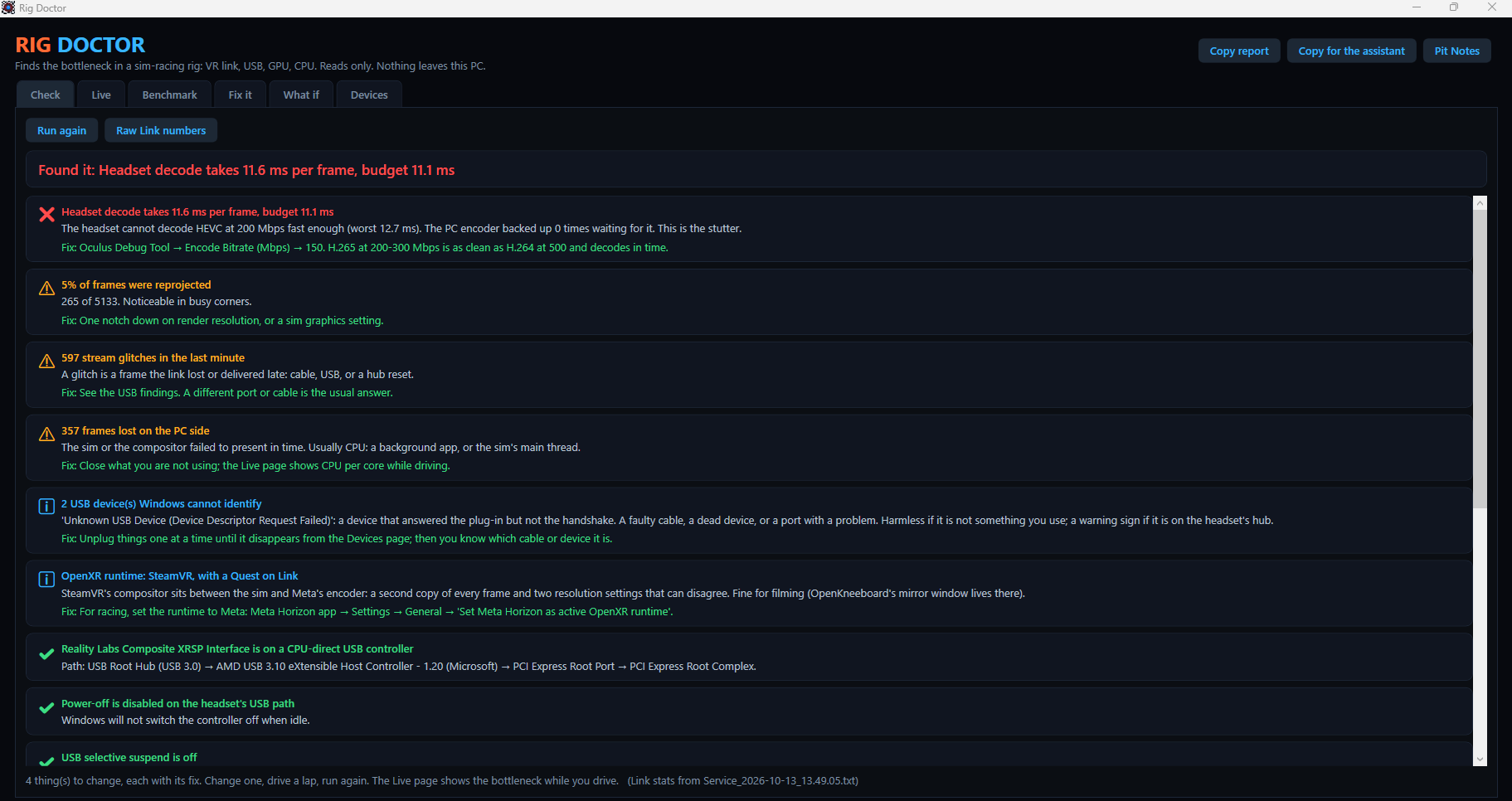
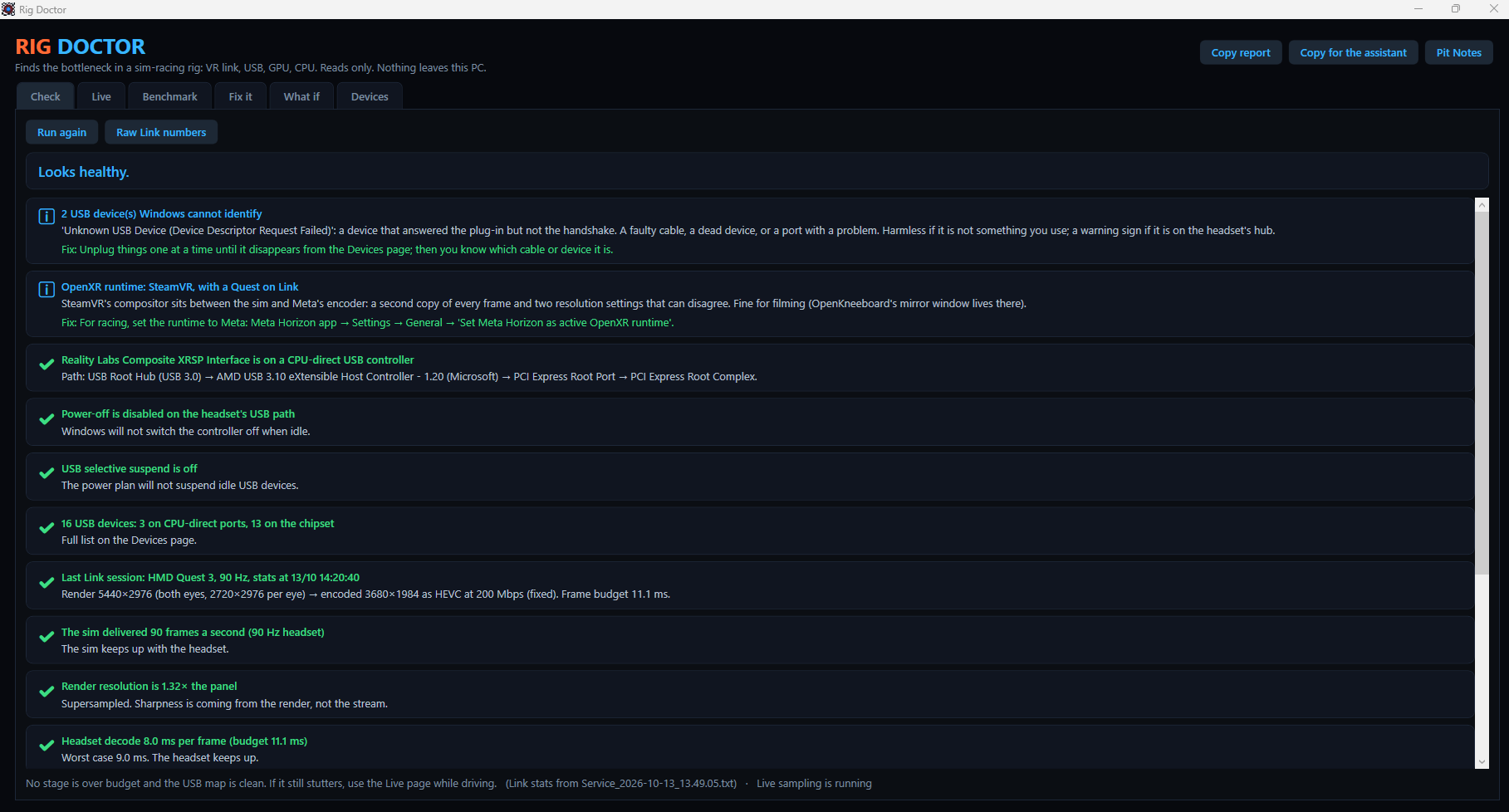
Run it with the headset plugged in, ideally right after a drive.
- Where the headset sits on USB. Whether its port is wired straight to the CPU or to the chipset's controller behind a PCIe switch, which shares one hub chip with the other rear ports. A headset on the chipset ports next to a wheel and wireless receivers is the classic cause of a mid-race drop.
- What shares its hub. A wheel, pedals, a receiver or a webcam on the same hub as the headset is flagged.
- Whether Windows may power that port down. The controller's and the hub's "allow the computer to turn off this device" flags, and USB selective suspend in the power plan. When the link goes quiet in a menu, Windows can switch the port off under the headset.
- The OpenXR runtime. Meta, SteamVR, Virtual Desktop or Windows Mixed Reality, and whether that is the direct path for your headset.
- The last Link session. From Meta's own once-a-minute stats line: render resolution per eye against the panel, codec, bitrate, the time the PC takes to encode a frame, the time the headset takes to decode it, reprojected frames, lost frames and link glitches. Each is scored against the frame budget at your refresh rate. A headset decoding at 22 ms when the budget is 11 is the stutter, and the fix is a number in the Oculus Debug Tool, not a graphics setting.
- The power plan, Game Mode, hardware GPU scheduling, for comparing notes.
Every finding carries its fix: the exact menu, the exact number.
Live page - while you drive#
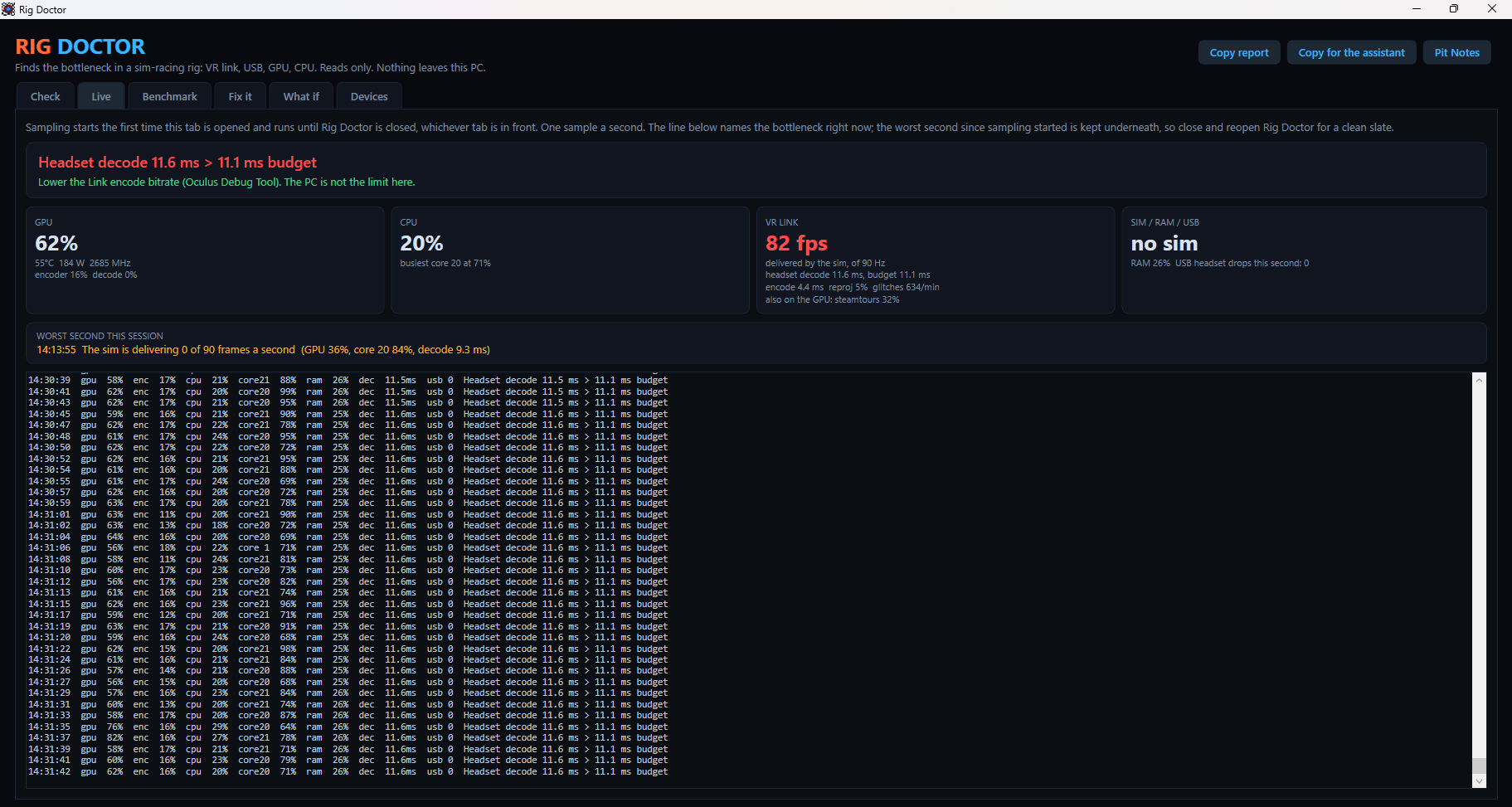
Leave it open on the monitor. One sample a second: GPU load, encoder and decoder engines, temperature, power and clocks on NVIDIA cards, CPU total and the busiest core, the sim's own process, RAM, USB drops as they happen, and the latest Link numbers. One line names the bottleneck right now, in this order: a USB drop, the headset's decoder, the GPU, a single pegged core, the encoder, memory, reprojection. The worst second of the session is kept, so you can read it after the race.
Devices page - every USB device#
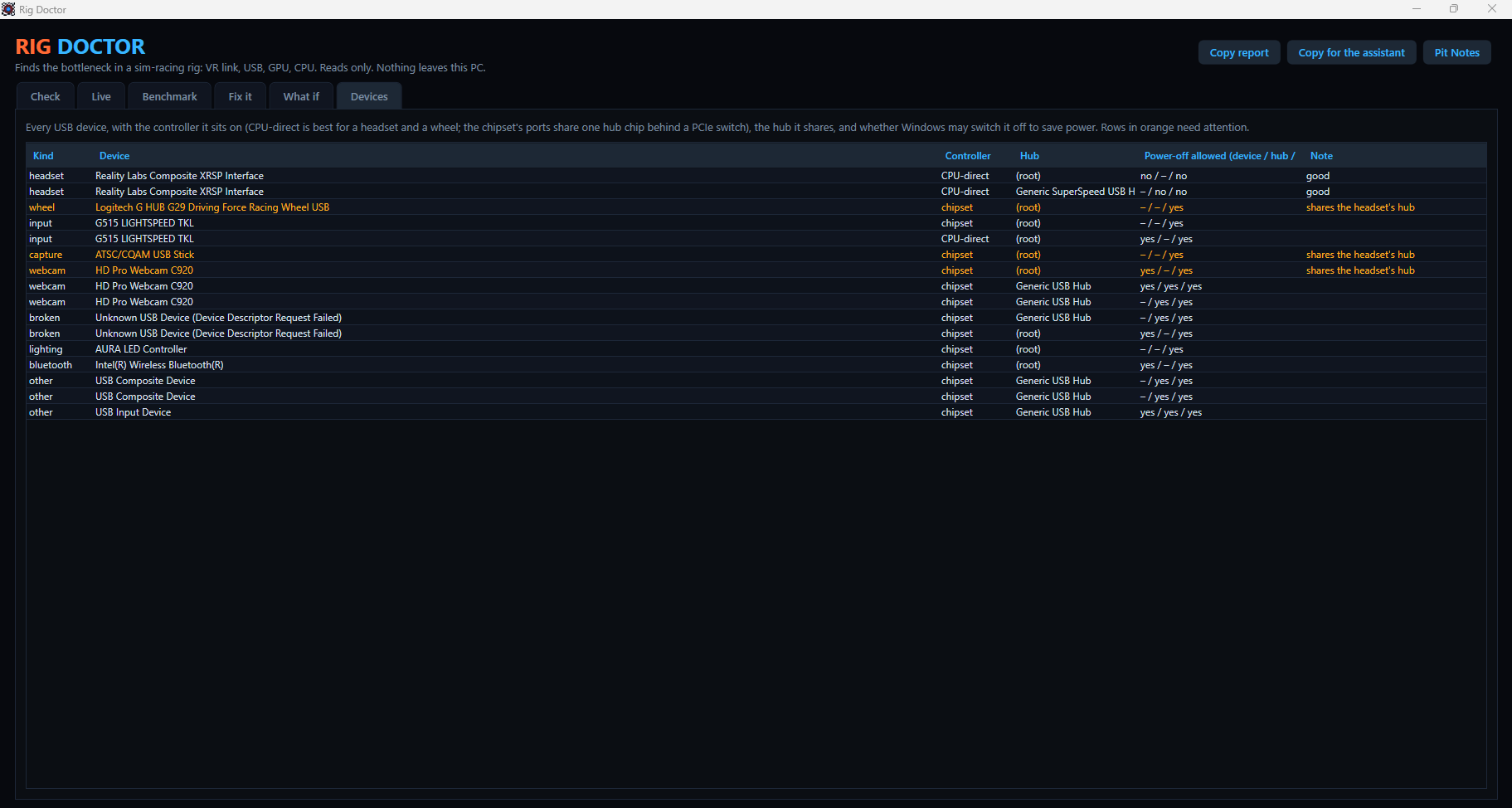
Headset, wheel, pedals, shifter, receivers, audio, capture, webcam, storage. For each: the controller it sits on, the hub it shares, and the three power-off flags. Rows in orange need attention, with a note saying why.
Headsets and hardware it knows#
Any USB headset is found by vendor: Meta, Valve, HTC, Pico, Varjo, Pimax, Bigscreen. The stream numbers come from Meta Quest Link's log, so that part is Quest over Link only; Virtual Desktop and SteamVR keep their numbers elsewhere. Wheels: Logitech, Fanatec, Thrustmaster, Moza, Simucube, Simagic; pedals: Heusinkveld, Leo Bodnar and the usual DIY boards. Anything it does not recognise is still listed with its port and flags. GPU load comes from Windows' own counters on every card, with more detail on NVIDIA.
Fix it page - let it make the change#
Every fix the Check found, as a tick list. Each one says exactly what it writes and why: the Link bitrate worked out from your measured decode time, the codec, Link sharpening, the pixel density override, the USB power-off flags on the headset's controller and hub, USB selective suspend, the Windows power plan, the OpenXR runtime. Tick what you want and press Apply. Settings your own account owns are written at once; the rest go through one administrator prompt. Nothing is patched or injected: these are the same values the Windows and Meta dialogs set, and you can see each one before it is written. Link settings take effect on the next Link session.
Benchmark page - a 60-second scorecard#
Press Start, then drive: a lap with traffic is best. Every stage gets headroom points on the same scale for every rig, and the grade is the weakest stage, because that is the one you feel. Copy it and compare.
What if page - the benchmark you did not have to run#
The same measured numbers at 72, 80, 90 and 120 Hz. Decode time and GPU time per frame do not change with the refresh rate; the budget does. So it can say, before you try it, that 120 Hz would need the bitrate down at 150 and the resolution back to native. For racing, resolution buys more than refresh once reprojection is near zero.
Copy report, and the assistant#
Copy report copies the whole thing as text, for a forum post or for sending to someone who can read it. Copy for the assistant makes a shorter copy that fits the chat box on this site: paste it into the RaceVisor Assistant, the orb in the corner, and ask what to do. It knows every check and every fix on this page and answers for your numbers. The report contains device names and numbers, never serials, file paths you did not already know, or anything about what you were running.
How to act on it#
Change one thing. Drive a lap. Run it again. The numbers move one at a time, and that is how you learn which one mattered. The Pit Notes page has the stories behind each check.